
How to enable Frontier: Step by step
Get the latest Copilot innovations
If the Workflows agent sounds like a mystery to you, or you doubt of the existence of the =Copilot() function in Excel at all, then keep reading becasue this tip may be for you!
Features like the =Copilot() function in Excel, the Workflows agent, or the Learning agent are part of the Frontier program. But what's the Frontier program and how to join it, this what this post is all about.
What's the Frontier program?
The Frontier program can help you get early-taste of Microsoft 365 Copilot features before they go public.
If you care about Copilot new features, and want to help new features improve, then the Frontier program is for your. It is great stuff to give feedback and help Copilot product development. 💪
Here's Microsoft official definition of the program:
The new Frontier program gives customers early access to experimental Microsoft 365 Copilot innovations in their own environment. Frontier agents are previews designed for evaluation and feedback. Features may change as development continues.
How to join Frontier program?
Follow the instructions below to turn it on:
- Web apps
- Desktop apps
- And Agent store
Step 1: Go to M365 Admin Center
- Log in as M365 Global Admin
- Click on Copilot and then Settings
Step 2: Search for "Frontier"
- Search for "Frontier"
- Click on Copilot Frontier
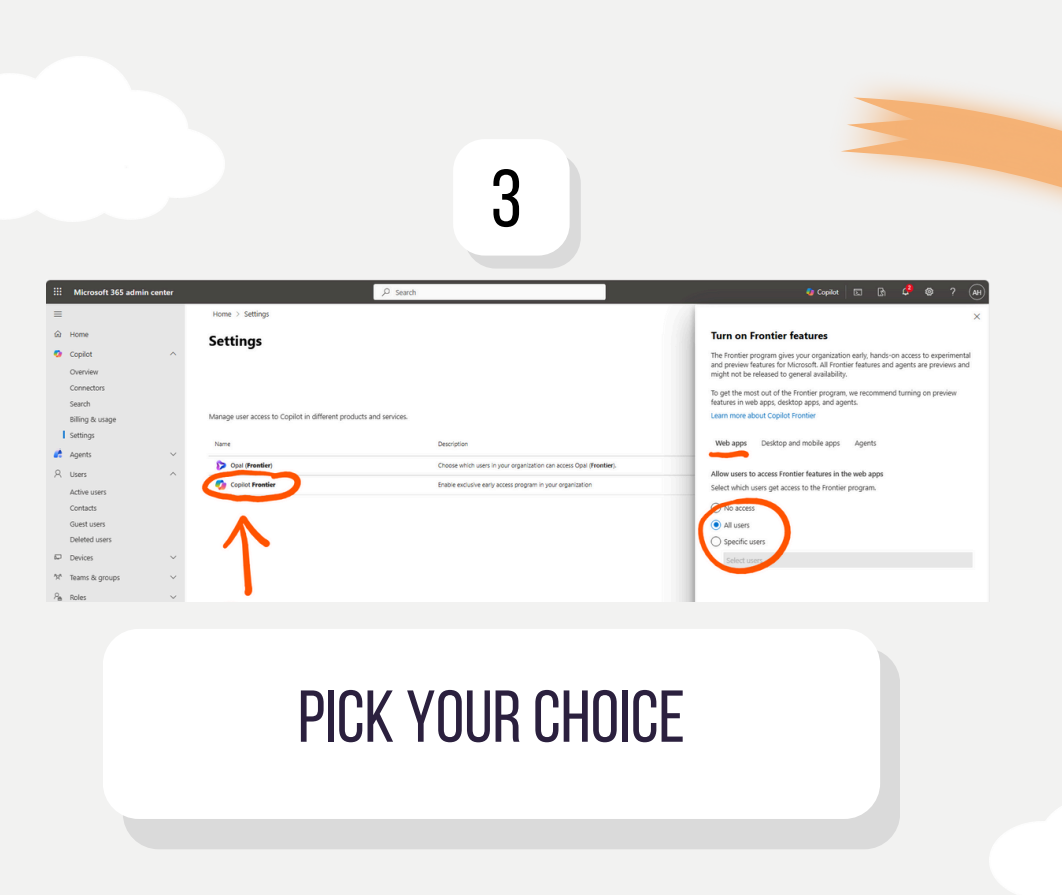
Step 3: Pick your choice
- Select the "Web apps" tab to enable for your web apps
- Select "Specific users" to add the security group you want to enable the Copilot Frontier for
Want to enable on desktop apps too?
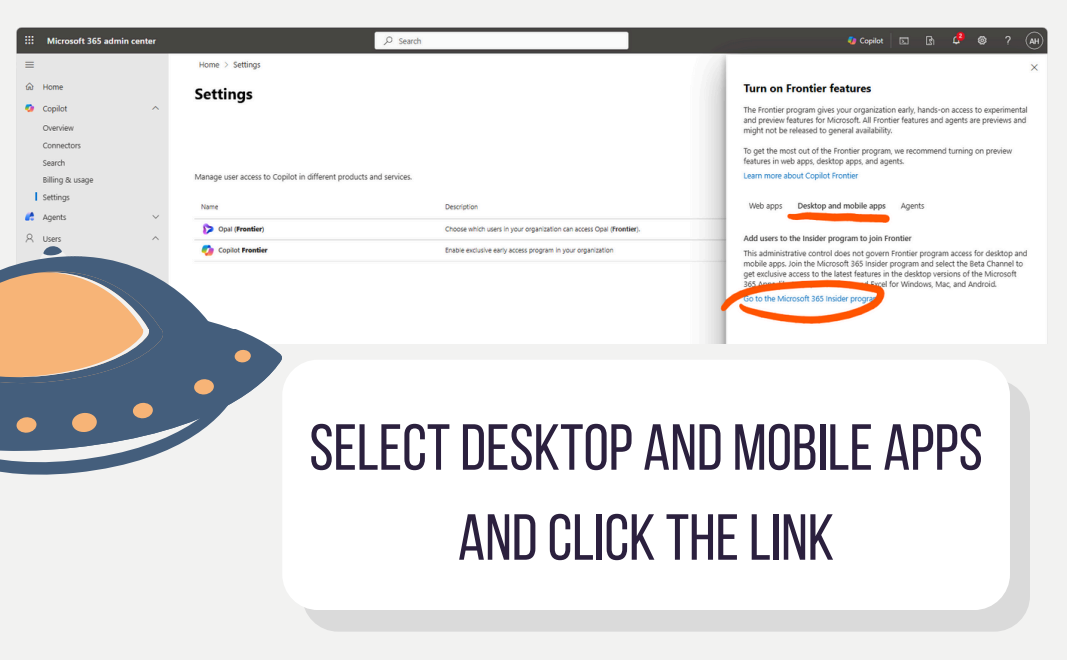
Step 4: Select Desktop and mobile apps
- Select the "Desktop and mobile apps" tab to enable for desktop
- Follow the link to find out the deployment option that best fit your environment (see screenshot below)
- In my environment, adding a reg key worked best
How do you know what's new in Frontier?
Want to find out the latest Frontier innovations?
In this page you can find it: Frontier program – Microsoft Adoption